

DM First Registration and Login Help for India Users
This page explains how to create a DM First account, sign in, and fix common problems. It covers the registration steps, OTP verification, login errors, and basic account safety. The steps are written for Android users in India.
Already have an account? Go to Login Help
What is DM First?
DM First is a mobile gaming application for Android devices. It brings several game types into one app, so users do not have to install many separate applications. The app is built for simple navigation and works on most Android phones sold in India.
What This Page Covers
Steps to download the DM First APK on your Android phone.
Create a new DM First account with your mobile number and password.
Sign in to your account and fix common login errors.
What to do when your OTP does not arrive or fails.
DM First APK Details
Key Features of DM First
Multiple Game Categories in One App
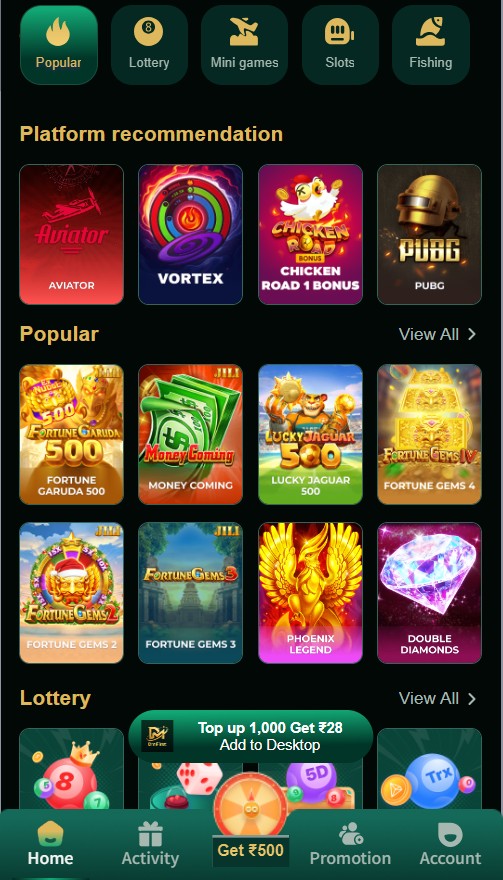
The app brings different game styles into one dashboard, so you can switch between sections without leaving the app.
Simple Account Setup
Registration uses a mobile number and OTP. The process takes only a few minutes on a stable network.
Organized In-App Sections
Each game type sits in its own section. Users can open any section from the main menu and return to the dashboard at any time without losing their place.
Lightweight File
The APK is around 30 MB. It installs quickly and does not use much storage space.
Works on Most Android Phones
The app runs on Android 5.0 and above. This covers a wide range of phones, including older models.
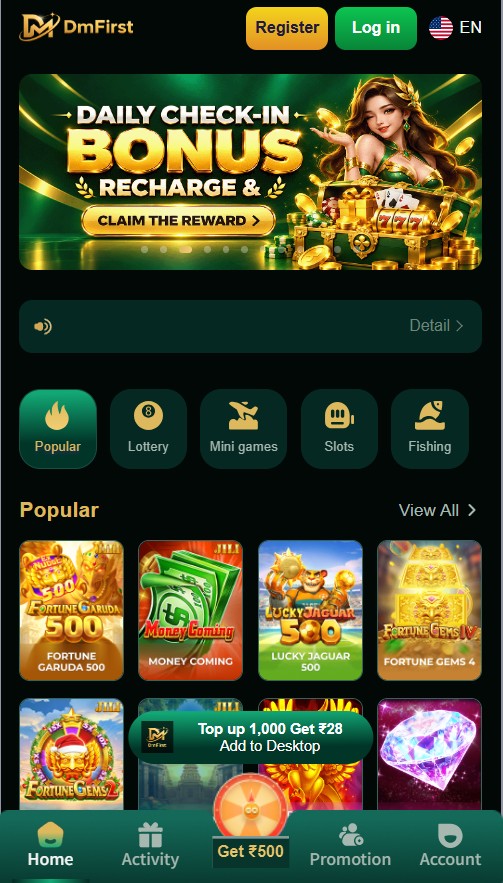
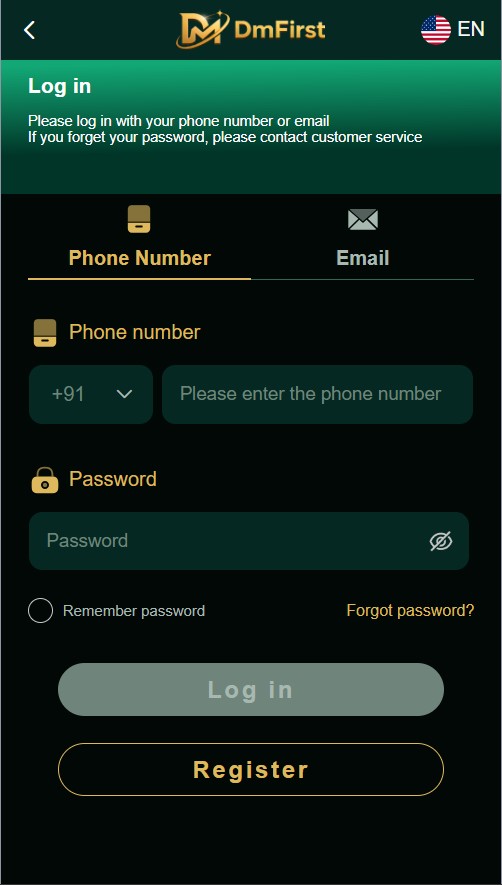
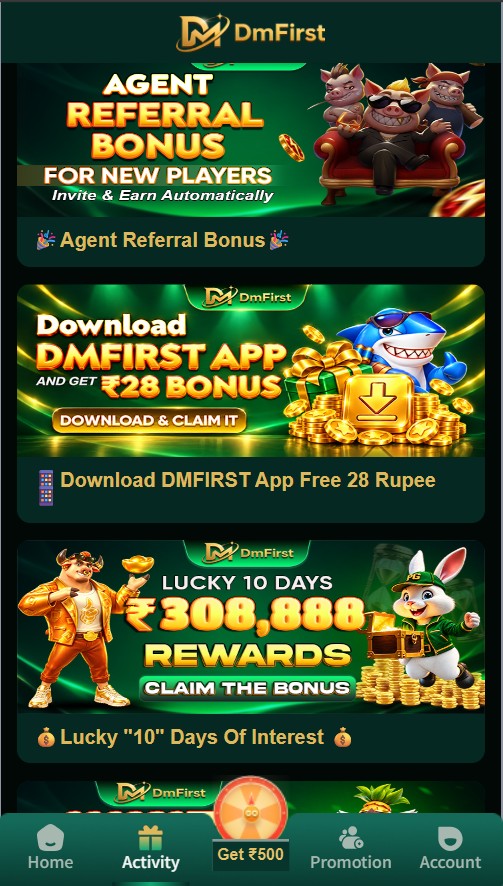
DM First App Screenshots
How to Download DM First APK
Follow these steps to download the DM First APK on your Android phone. The steps may look slightly different depending on your phone brand.
-
Open the Download Page
Go to the DM First download page on this site. -
Tap the Download Button
Click the download button to save the APK file to your phone. The file will go to your default Downloads folder. -
Allow Unknown Sources
If your phone asks, go to Settings → Security and enable “Install from Unknown Sources” for your browser or file manager. On newer Android versions, this is called “Install Unknown Apps”. -
Find the APK File
Open your Downloads folder from the notification bar or your File Manager. Tap the DM First APK file and select Install. -
Install and Open
Follow the on-screen steps to finish the installation, then open the app from your home screen.
How to Register a DM First Account
Follow these steps to create a new account. The screens may look slightly different depending on your phone model.
-
Open the DM First App
Launch the app from your home screen or app drawer. You will see the login screen. -
Tap on Register
On the login screen, tap the Register or Create Account button. -
Enter Your Mobile Number
Enter your active 10-digit mobile number. Make sure it is correct because the OTP will be sent to this number. -
Verify with OTP
Tap Send OTP. Enter the code you receive by SMS. If the code does not arrive, see the OTP section below. -
Set a Password
Create a strong password, confirm it, and finish your profile.
How to Log In to DM First
-
Open the App
Launch the DM First app on your phone. -
Enter Your Details
Type your registered mobile number and password. -
Tap Login
Tap the Login button to open your account dashboard.
If you cannot log in, check the common login errors below.
Common Login Errors and Fixes
Wrong Password
Use the Forgot Password option on the login screen. Follow the steps to reset your password using your registered mobile number.
App Not Loading
Check your internet connection. Close the app and open it again. If the problem continues, restart your phone.
Account Not Found
Make sure you are entering the same mobile number you used during registration. If you created the account with a different number, log in with that number instead.
OTP and Verification Help
Many users face problems with the OTP step. Here are the most common reasons and what to do.
-
OTP Not Arriving
Wait for two to three minutes. OTP delivery can be delayed when the network is busy. Do not tap Send OTP many times in a row. -
Wrong Number Entered
Check that your mobile number is typed correctly. One wrong digit is enough to stop the OTP from arriving. -
No Signal
Move to a place with better network coverage. If you are using Wi-Fi only, turn on mobile data for the OTP step. -
OTP Expired
OTP codes expire after a short time. If yours has expired, tap Resend OTP and use the new code.
Data and Privacy – What You Should Know
Users often ask what happens to the information they enter during registration. Here are the basics.
-
Mobile Number
Your mobile number is used only for OTP verification and account login. It is not shown to other users. -
Password
Your password is stored in an encrypted form. Even the app team cannot see your original password. -
Account Activity
Your login history and game activity are stored inside the app. You can check this from your profile page. -
Logging Out on Shared Devices
If you use a shared phone, always log out after use. This keeps your account safe from other users.
Safety Checklist Before You Register
Before creating an account, take a few minutes to check these basic points.
-
Use Your Own Mobile Number
Register only with a number that belongs to you. Do not use a friend’s or family member’s number. -
Keep Your OTP Private
Never share your OTP with anyone. No support team will ask for your OTP. -
Avoid Fake Support
Be careful of messages or calls that claim to be from DM First support. Verify through the app only. -
Use a Strong Password
Mix letters, numbers, and symbols. Do not use your name or birthdate as a password. -
Check the App Source
Only install the app from a source you trust. Avoid files sent through unknown messages.
Account Security Tips
- Change your password every few months.
- Do not log in on devices that do not belong to you.
- Log out after using a shared device.
- Keep the app updated to the latest version.
- If you notice unusual activity in your account, change your password immediately.
Frequently Asked Questions
How do I create a DM First account?
Open the app, tap Register, enter your mobile number, verify the OTP, and set a password.
Why is my OTP not arriving?
OTP delivery can be delayed when the network is busy. Wait two to three minutes before tapping Resend OTP.
I forgot my password. What should I do?
Use the Forgot Password option on the login screen and follow the steps to reset it with your registered mobile number.
How do I update the DM First app?
Download the latest APK from a trusted source and install it over the old version. Your account data stays the same after the update.
What should I do if I think my account is not safe?
Change your password right away from the app settings. If you cannot log in, use the Forgot Password option with your registered mobile number.
Which Android versions does DM First support?
The app runs on Android 5.0 and above. Older phones that do not meet this requirement may not install the APK.
Disclaimer
DM First Help is an independent information page. It is not connected to the DM First development team, and it does not operate the game, handle payments, or manage user accounts.
All steps on this page are written from user feedback and tested on Android devices in India. For account-specific issues, use the support options inside the app.
Last reviewed: October 2026